
The transform gizmo & asset browser
site/media/lessons/editor-ops.lesson.ts (4 steps) Selecting an entity gives you the transform gizmo — the on-object handles you drag to move,
rotate, and scale. It has three modes (Move / Rotate / Scale), switchable from the toolbar, the
W/E/R hotkeys, or the command palette. This lesson switches modes from the palette so each
change is explicit.
-
Select an entity — the Move gizmo appears. Click an entity in the hierarchy (or the viewport). The Move gizmo’s colored axis arrows appear on it (red = X, green = Y, blue = Z).
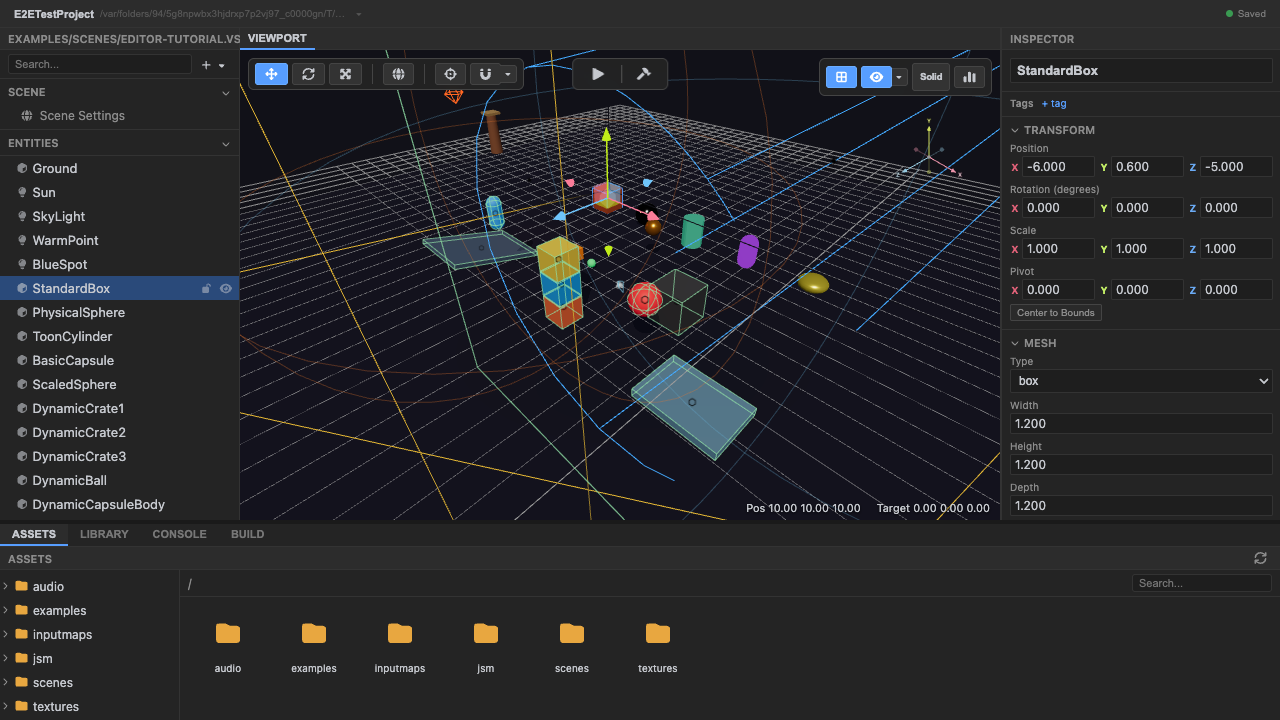
Selection shows the Move gizmo (axis arrows). -
Switch to Rotate mode — the gizmo shows rotation rings. Run Rotate Mode from the command palette (
Ctrl+K). The arrows become rings you’d drag to spin the object about each axis.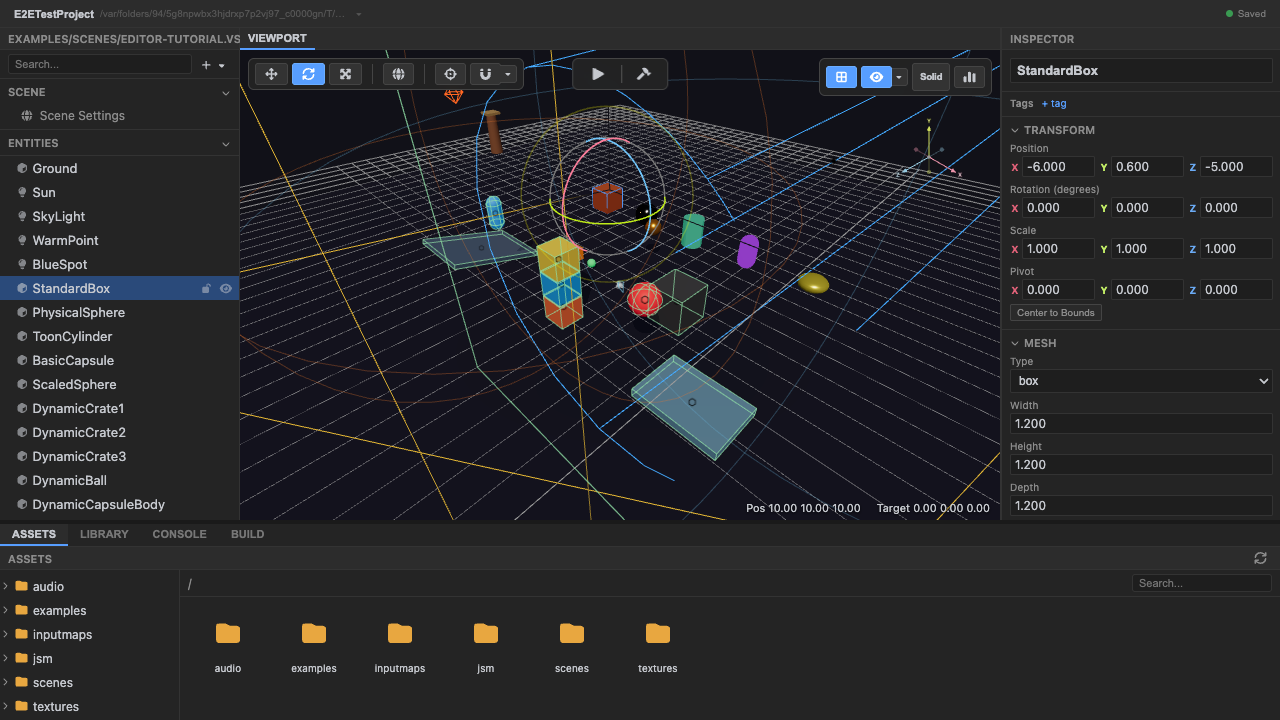
Rotate mode: the gizmo becomes rotation rings. -
Switch to Scale mode — the gizmo shows box handles. Run Scale Mode. The handles become boxes you’d drag to scale along each axis (or uniformly from the center).
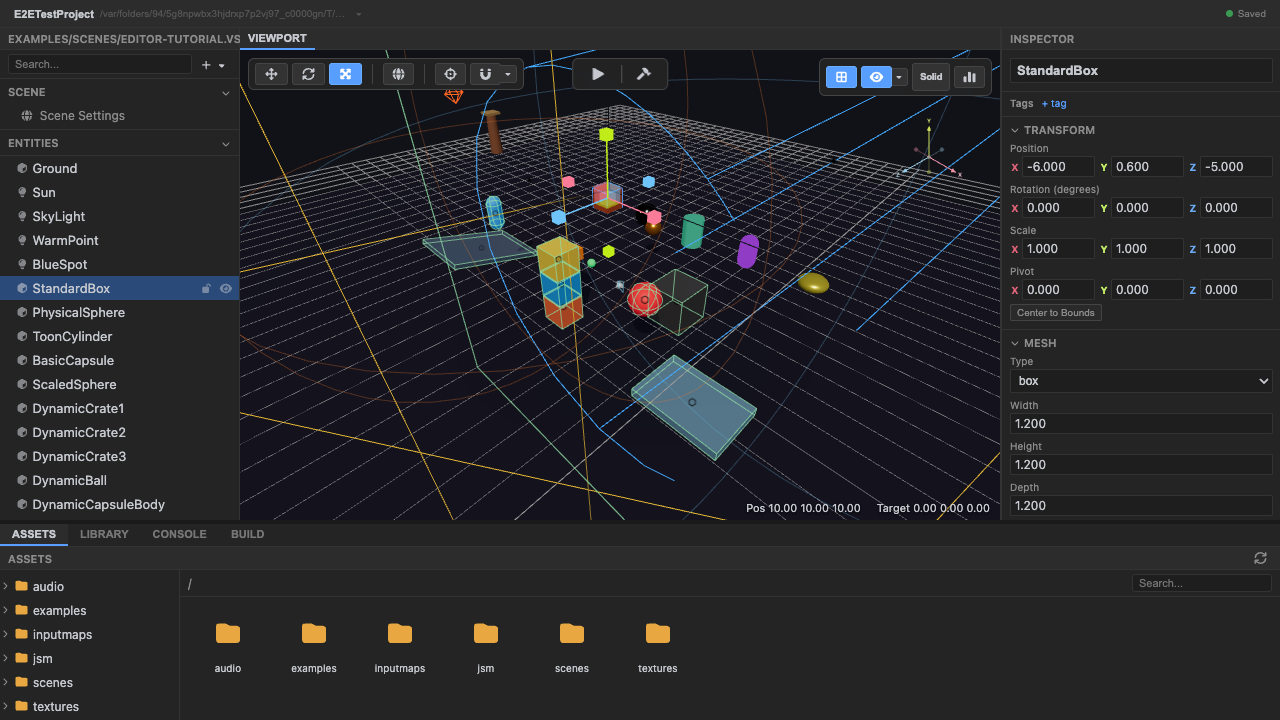
Scale mode: the gizmo becomes box handles. -
Browse the asset library. The bottom Assets panel is a folder tree; double-click a folder to open it. Models (
.glb) and prefabs are the assets you drag into the viewport or hierarchy to add them to the current scene.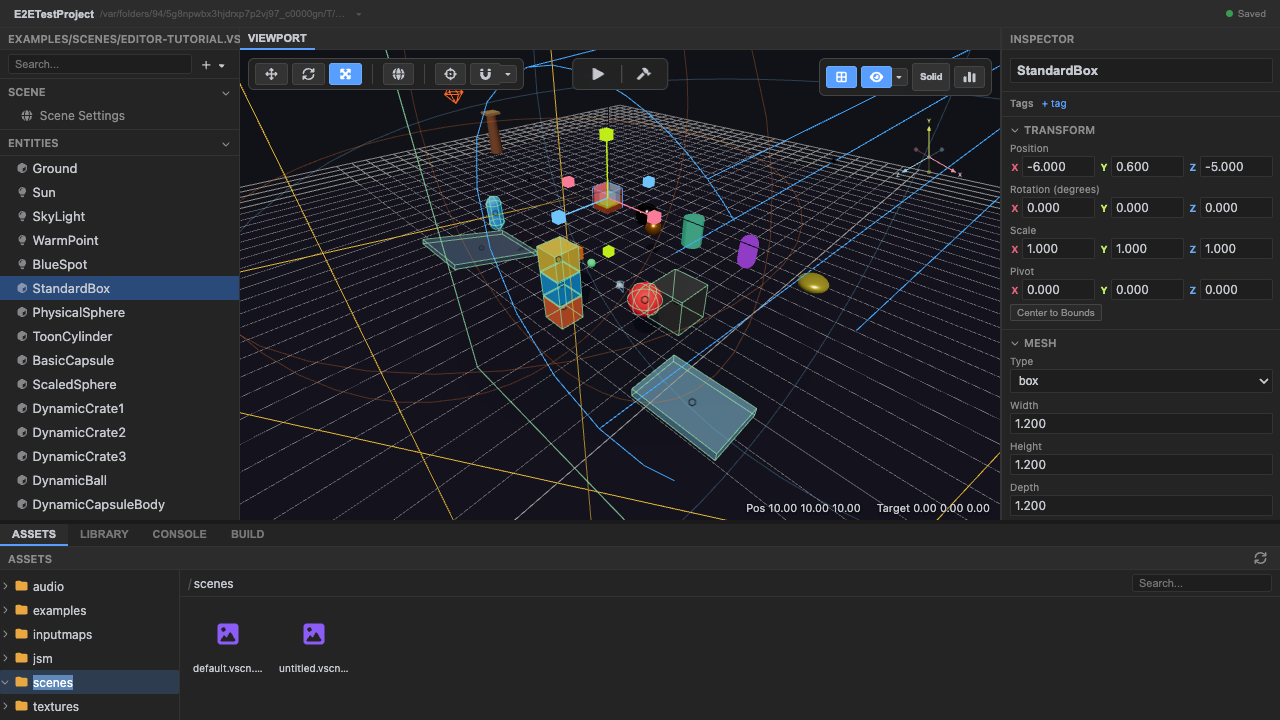
The asset browser, opened to the scenes folder — double-click a scene to open it.
Recap
New functionality
- Selected an entity to get the transform gizmo
- Switched the gizmo between Move, Rotate, and Scale
- Browsed the asset library and opened a folder
New concepts & skills
- Selection drives the gizmo; modes are Move/Rotate/Scale (W/E/R, toolbar, or palette)
- Each mode shows distinct handles: arrows / rings / boxes
- The asset browser is a folder tree; assets drag into the viewport or hierarchy
Next lesson → Assets, prefabs & ops