Run & understand the third-person character
site/media/lessons/capstone-third-person.lesson.ts (6 steps) The fastest way to understand the third-person character is to run it, then read how the two
components produce what you saw. The video above is the real third-person example driven in
the editor.
Run it
Section titled “Run it”-
Open the third-person scene in the editor. Run
VGAI_PROJECT=examples/third-person-action npm run dev— the project’s scene loads by default. You’ll see the character on a ground plane with a few pushable props.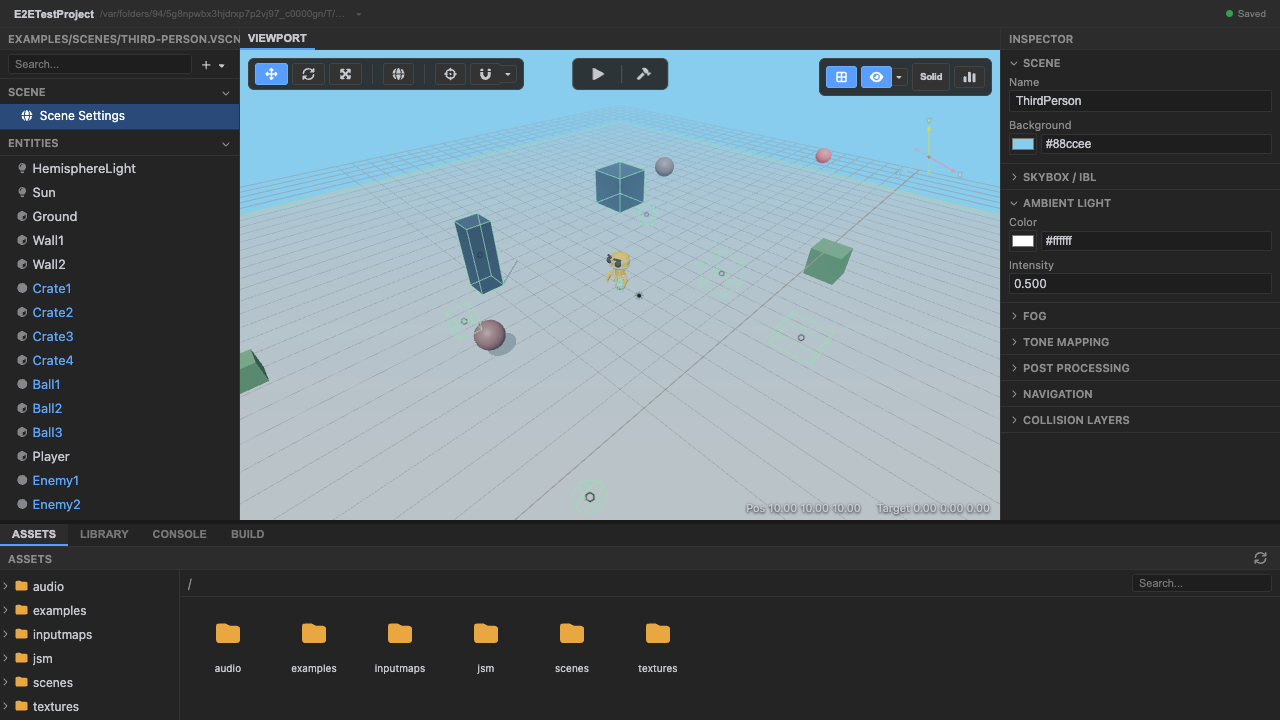
The third-person scene. -
Enter play mode to run the character controller. Press Play. The runtime boots and the
CharacterController+CameraTargetcomponents come alive.
Play mode runs the real character controller. -
Drive the character forward with
W. Movement is applied to a RapierKinematicCharacterControllerin theprePhysicsphase, which collide-and-slides the character along the ground.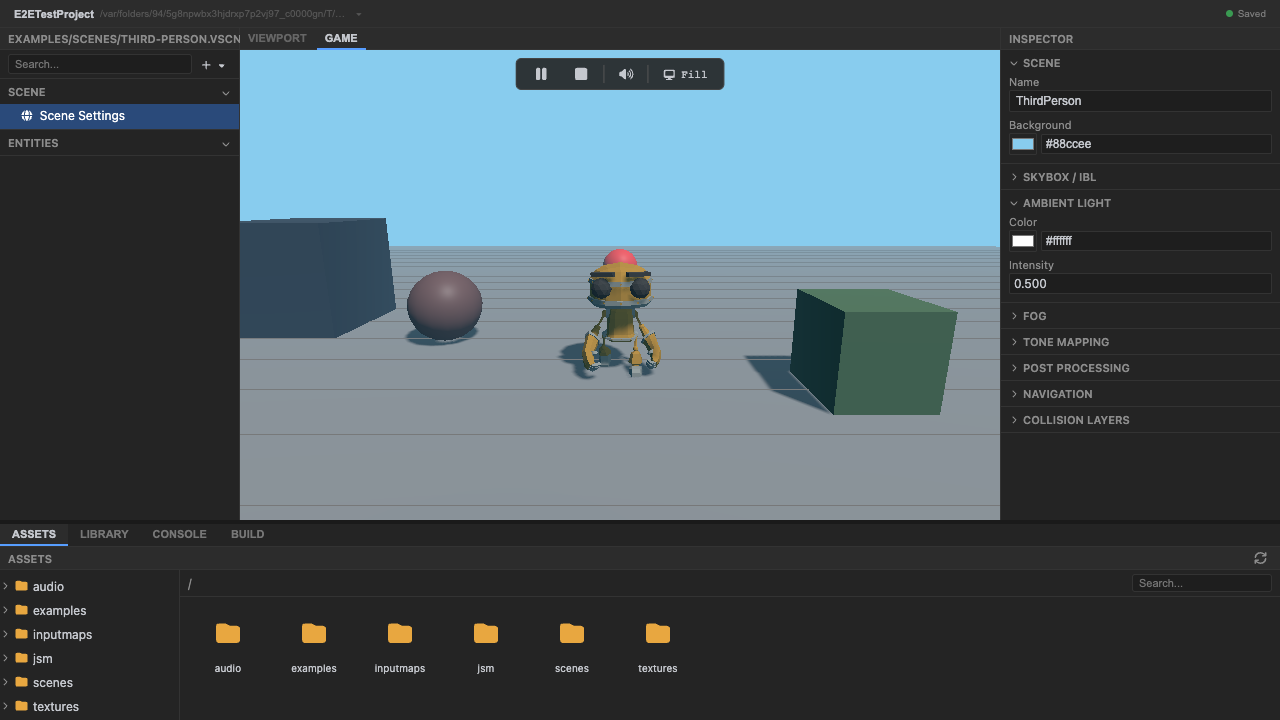
WASD movement via the KCC. -
Strafe and turn with
A/D. The horizontal speed is sent to the character-animation XState machine asUPDATE { speed }, which drives a blend tree from idle → walk → run.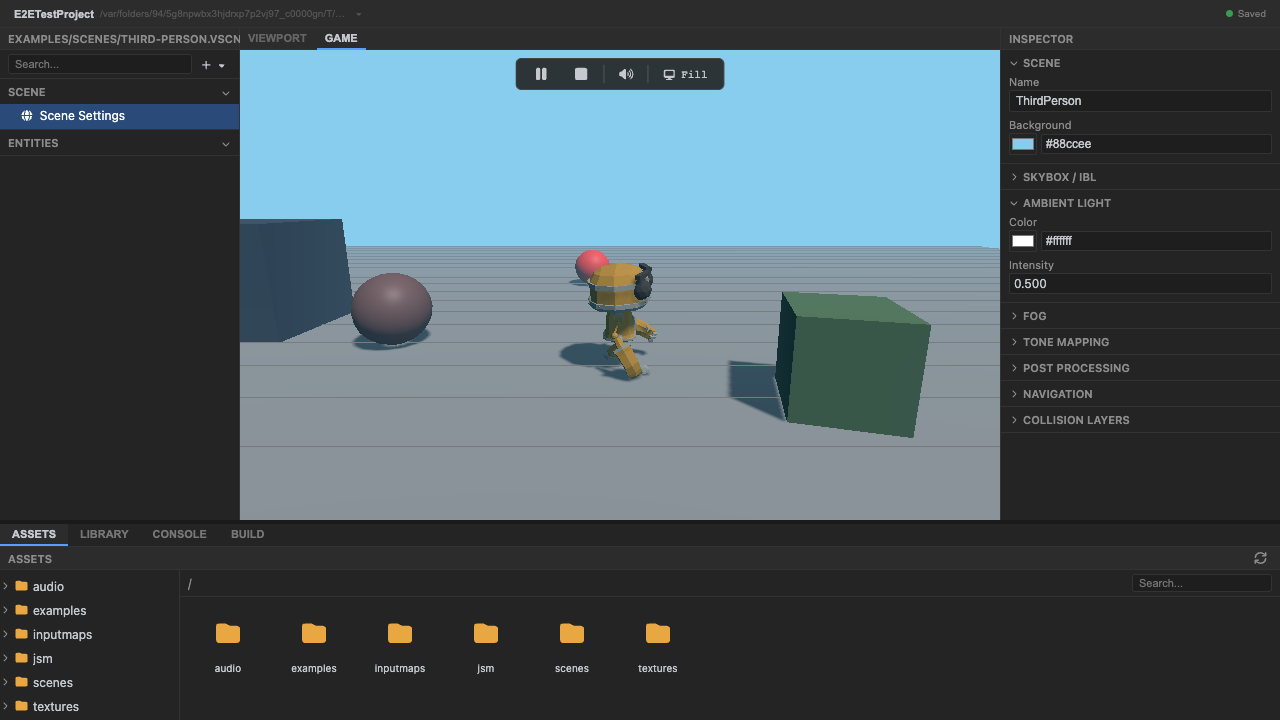
Locomotion blends with movement speed. -
Orbit the follow camera with the mouse. The
CameraTargetcomponent tracks yaw/pitch and positions the runtime camera behind the character inpreRender.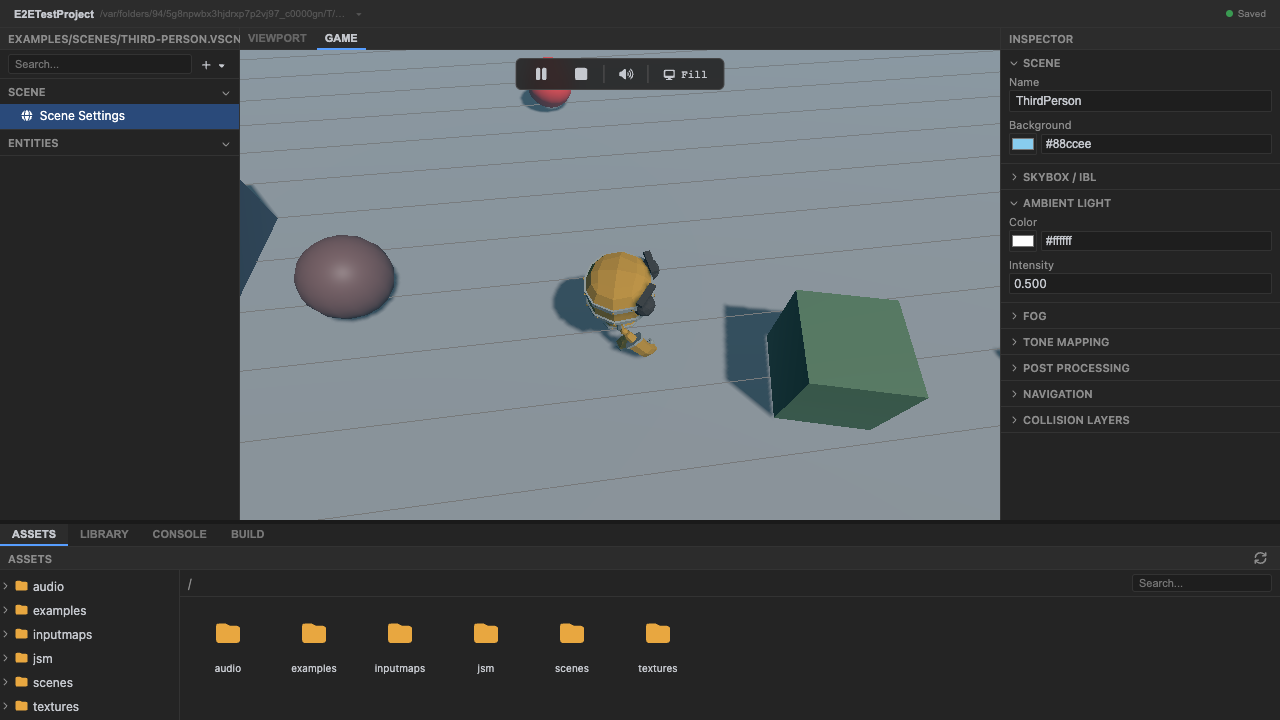
The orbit follow camera. -
Stop play mode. Press Stop (or
Escape) to return to editing.
How it works
Section titled “How it works”CharacterController(components.ts, phaseprePhysics) owns the RapierKinematicCharacterController. Each tick it reads input, builds a move vector, applies gravity and (on thejumpaction) an upwardjumpVelocity, and calls the controller to move-and-slide. It sends the resulting horizontal speed to the character-animation XState actor as anUPDATEevent and sends aJUMPevent when jumping.CameraTarget(components.ts, phasepreRender) owns the orbit camera and pointer-lock DOM wiring, tracking yaw/pitch as instance fields, and places the runtime camera behind the character — after movement and animation, so the camera never lags a frame.- The
character-animationXState machine (components.ts) blendsidle/walk/runby thespeedcontext value inside itslocomotionstate’s blend tree, andbindXStateAnimation(see XState animation binding) turns that into nativeAnimationMixeraction weights every frame.
Recap
New functionality
- Ran the third-person character and controlled it with WASD + mouse
- Saw the follow camera orbit
- Saw locomotion animation blend with speed
New concepts & skills
- A KinematicCharacterController moves a character with collide-and-slide in prePhysics
- Horizontal speed drives an XState blend-tree state (idle/walk/run) via bindXStateAnimation
- The follow camera positions in preRender, after animation, to avoid lag
- Movement vs. camera live in different phases by design
Next lesson → Manual: XState animation binding
See also
Section titled “See also”- Capstones — the other games.
- Physics: rigid bodies · Animation: XState animation binding · Input