Explore the all-systems showcase
site/media/lessons/qs-showcase.lesson.ts (5 steps) The editor-tutorial example is a single scene that exercises most of the engine at once —
the fastest way to see what vgai renders. Its setup adds particles, a bloom post pass, and
debug draw on top of a scene full of PBR materials, lights, and physics bodies.
-
Open the editor-tutorial showcase scene. The scene is already open — if you followed the link above, the editor-tutorial scene is loaded and rendering (in the local dev editor:
VGAI_PROJECT=examples/editor-tutorial npm run dev).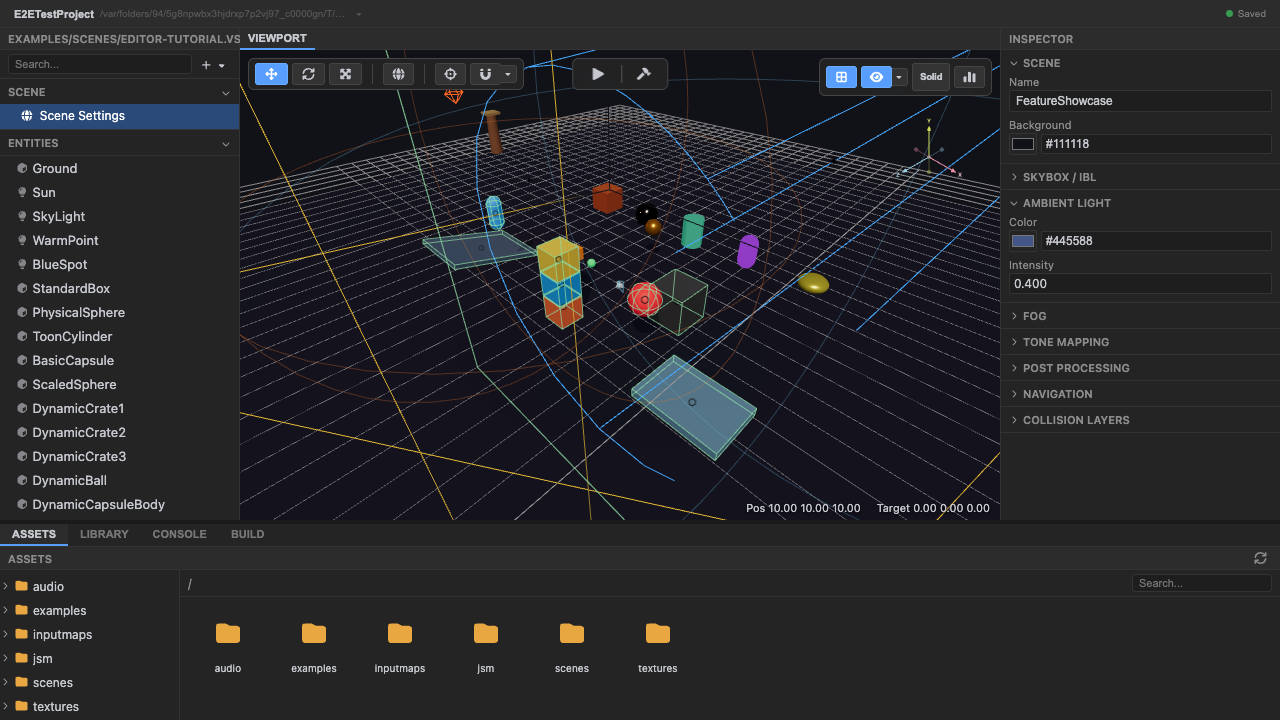
The showcase scene. -
Enter play mode — meshes, materials and lights render. Press Play. The scene’s PBR materials and lights render through the engine renderer.
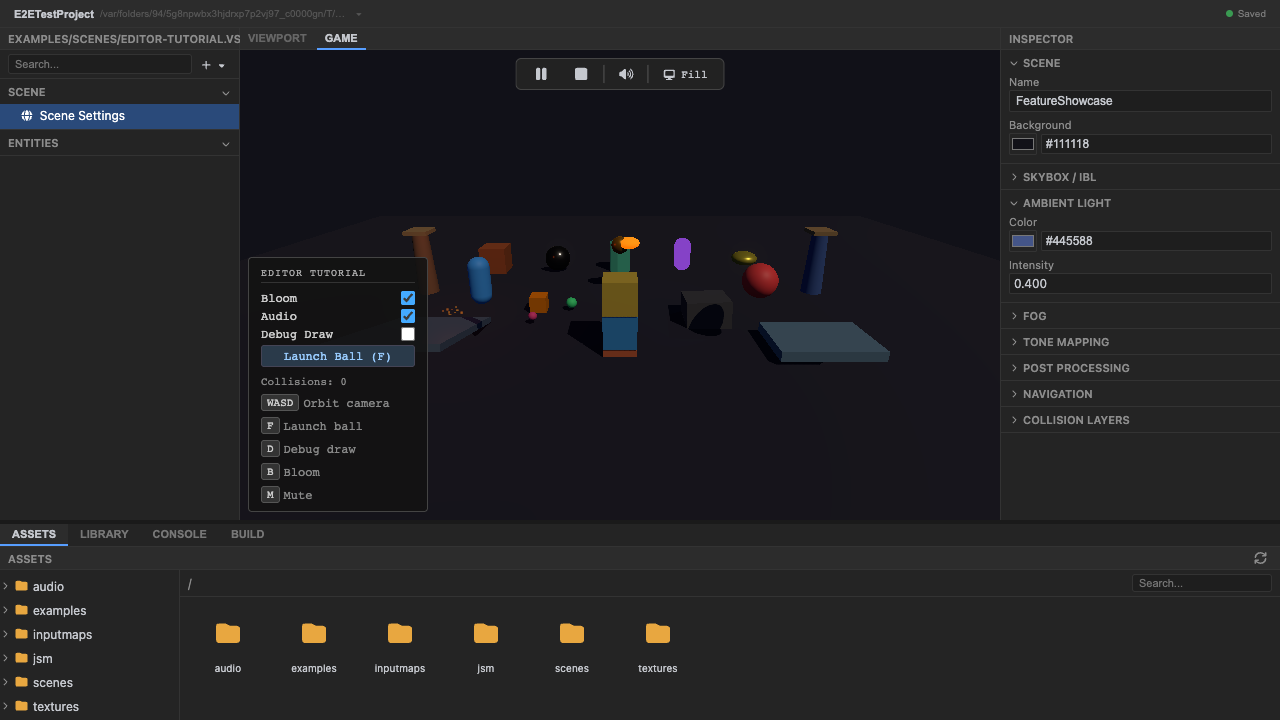
PBR materials + lighting. -
Particles and bloom post-processing animate the scene. The example’s setup adds a three.quarks particle system and a bloom effect pass — they animate live.
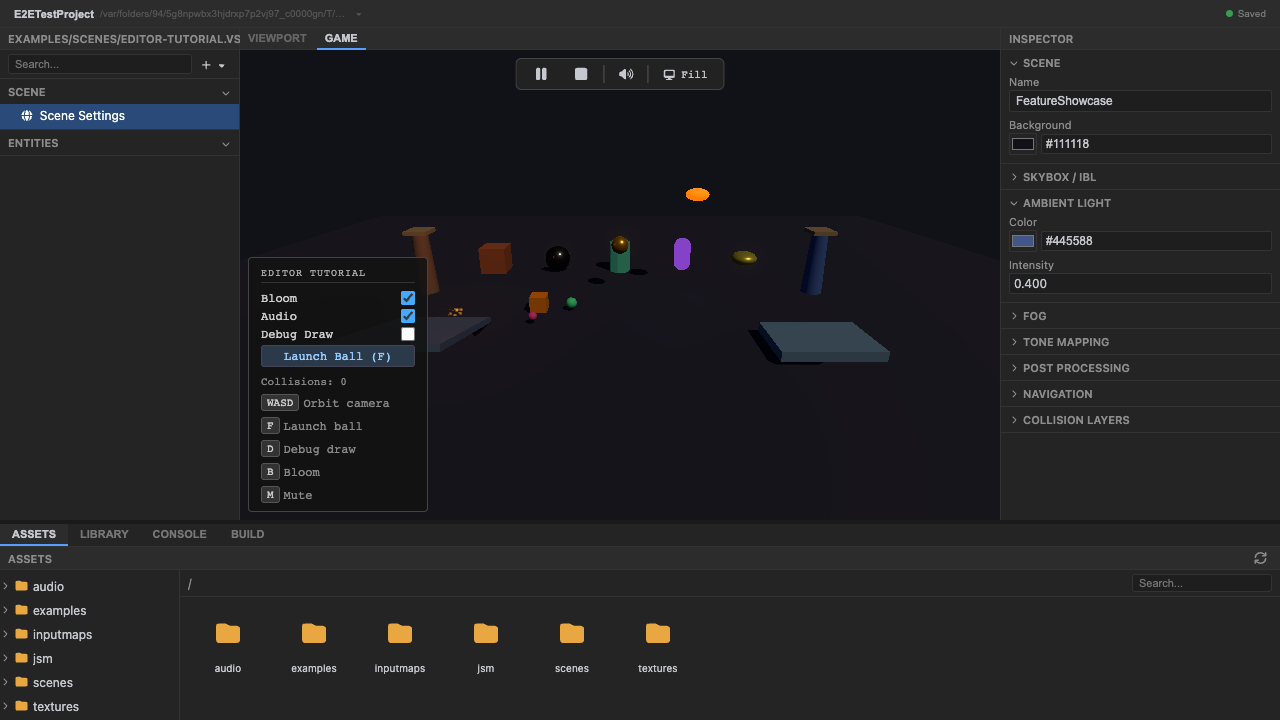
Particles + bloom (added in the example's setup). -
Toggle the physics debug view with
Pto see colliders. Collider wireframes overlay the scene, drawn fromrapierWorld.debugRender().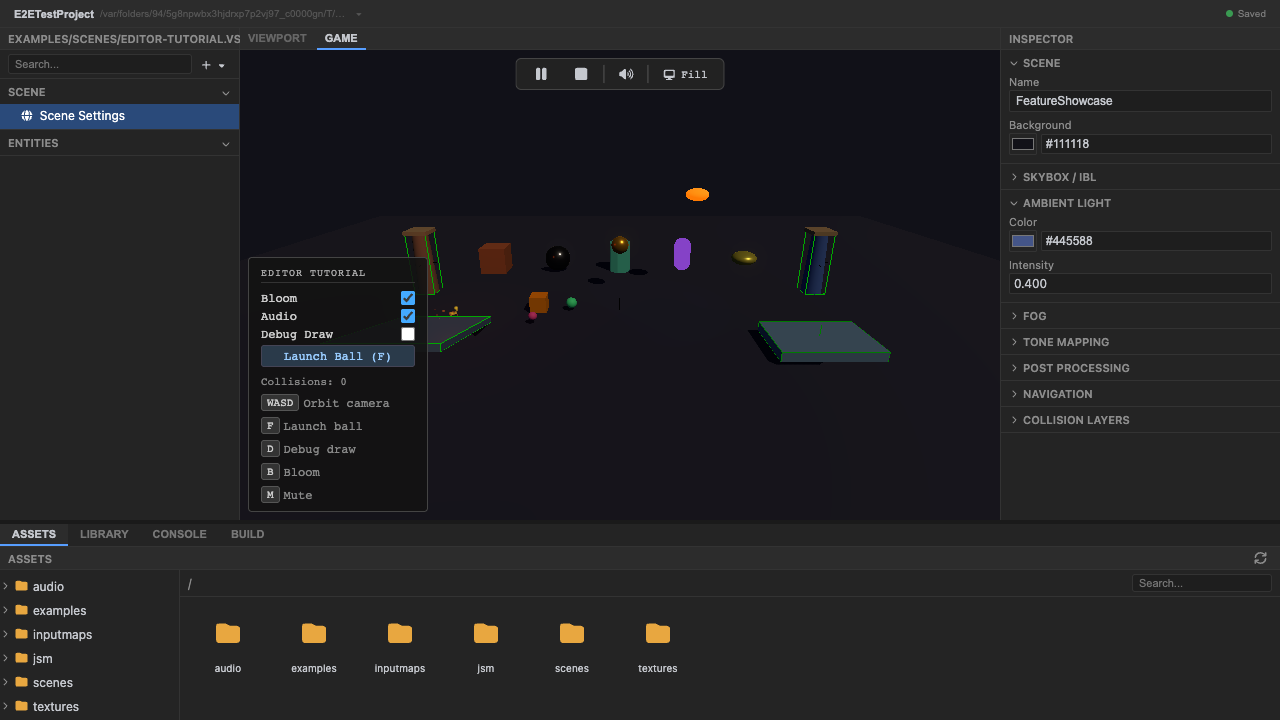
Physics debug overlay (P). -
Stop play mode. Press Stop (or
Escape).
Recap
New functionality
- Ran the all-systems showcase
- Saw materials, lights, particles, and bloom together
- Toggled the physics debug view
New concepts & skills
- Materials/lights/physics come from the scene; particles/bloom/debug-draw are added in the example's setup()
- Play mode runs the real engine renderer + post-processing
- P toggles the Rapier debug overlay
Next lesson → Manual: Post-processing
On Your Own!
Extend what you built:
- Open the inspector and change a material's color or roughness
- Tweak the bloom intensity (see the Post-processing manual)
- Add a light and watch shadows update